How to request your Kindle data from Amazon
What you can find in the Kindle app
While Amazon keep amazing track of your reading habits and statistics, they only give you access to a tiny part of it by default. Their current strategy is to engage you with “reading challenges”, and that’s pretty much all the data you can access.
If you haven’t checked that out yet, you can set and track your reading challenges in the Kindle app (available for Android and iOS). This will show you how many days and weeks you’ve read in a row (your reading streak), and you can reach various “achievements.” These include, for instance, a perfect week (reading every day), and various levels of reader: bronze, silver, gold reader and so on.
That’s pretty cool, but it’s tied to the same basic statistics: how many days or weeks you’ve read in a row without a pause, and how many books you’ve finished within a given time period. That’s about all that Amazon offer at the moment.
What is available via your Kindle data export?
For those of you who’d like a more detailed breakdown of your reading statistics and achievements, the good news is that it’s possible to request a full export of all the data that Amazon keep on your Kindle use.
This has way more detail to it than you can see in the app or on your Kindle, including (and this isn’t even all of it):
- How many pages you read per day, and per reading session
- How many books you’ve read, and which you completed
- What time of day you tend to read
- …and of course which day(s) of the week
- The genres you read
- The ratings you gave on Kindle
- How much time you spend reading
And that allows you to learn a whole lot more about your reading than Amazon’s reading challenges!
How to access your Kindle data
This is a good-news-bad-news situation, in that it’s very easy to actually request your data… but you do have to be a bit patient, as it can take up to several days (vague, I know, but there’s no exact timeframe for it) to actually receive the exported data.
I’ve personally exported my data a handful of times, and I know a handful of other people who have done it at least once. While that’s hardly a representative sample, my experience is that it usually takes 48-72 hours before the data arrives.
Step-by-step guide to requesting your Kindle data
- Head to the request your data page on Amazon – I’m linking to the Amazon.com page here, but it should work regardless of your location. I’m not a .com customer myself, and this is where I made my requests.
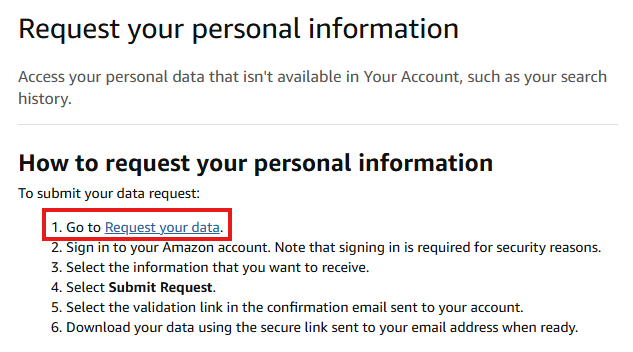
- Look for the section that says “How to request your personal information”, and click the link in the first step (as in the screenshot below).
- Sign in to your Amazon account when prompted to do so.
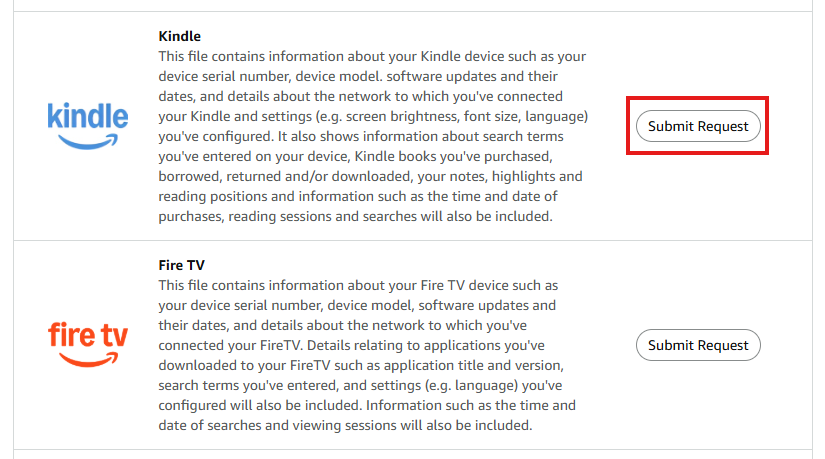
- Scroll down until you see the Kindle logo – at the time of writing, it’s the 7th item in the list. Hit “submit request” on that row.
- You will receive an e-mail to the address linked to your Amazon account, which you have to open to confirm the request. This is a validation step, and if you don’t click the link in the e-mail your request will not be processed.
- Wait for a couple of days while Amazon process your request.
- After around 48-72 hours (again, in my experience) you will receive a second e-mail from Amazon which contains a ZIP file with all of your Kindle data.


That’s it!
If you want to explore your Kindle data on your own, I’ve got a guide on how the data in the ZIP file works as well. That said, I created WrapRead precisely to automate away the pain of having to sift through the endless CSV files that the export contains.