How to interpret your Kindle export data
So you’ve requested your Kindle data export, and now you’re keen to find out how to actually read it! It’s a bit of an overwhelming experience, as the folder contains something like 99 individual top-level folders, and each folder contains at least one CSV file.
It’s not quite as scary as it looks on first glance, though, because most of the top-level folders contain data that is very unlikely to be of any particular interest to you. I mean I don’t know about you, but I personally didn’t request my data to find out about my menu customization settings or low battery alerts.
Since the folder structure of the Amazon Kindle data export might vary a bit between exports, I can’t tell you exactly which folder to go looking in. File names should stay consistent though, and you can search zip files (or the extracted folders) for specific names.
Kindle– this is probably the best file to open first. It has one row per day, and shows the date, pages_read, and total_reading_millis. That’s right – it gives you the reading time in milliseconds, not minutes or even normal full seconds. So the first thing you will probably want to do is take column D and divide it by 60,000 to get the value in minutes; or by 3,600,000 if you want to see the value in hours..ReadingActivity .csv 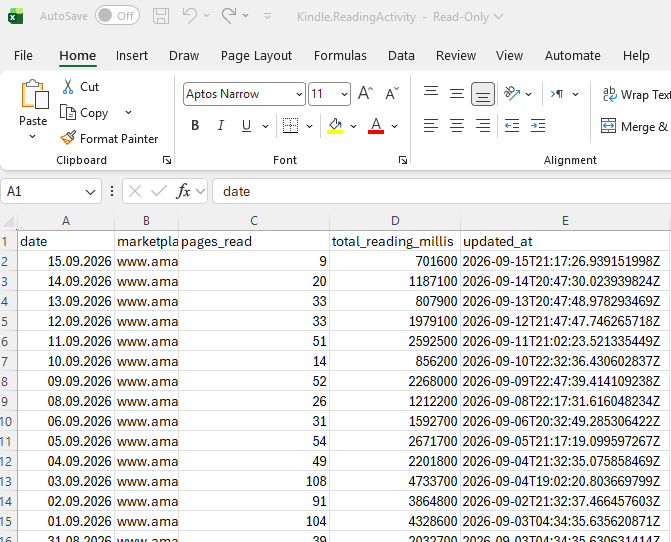
- The second file you might find interesting has the highly memorable name
Kindle. This serves all of your data as one column, so you will want to use Excel’s text to columns feature: click column A to select all of it, then go to the Data tab in the menu ribbon, and then “Text to Columns.” Select “Delimited”, then hit next, select the Comma delimiter, and hit Finish. This will convert the data from one column into seven, which is easier to read..reading- insights- sessions_ with_ adjustments .csv - That file shows you which book (product_name) you read on what day, and how many milliseconds you spent reading it.


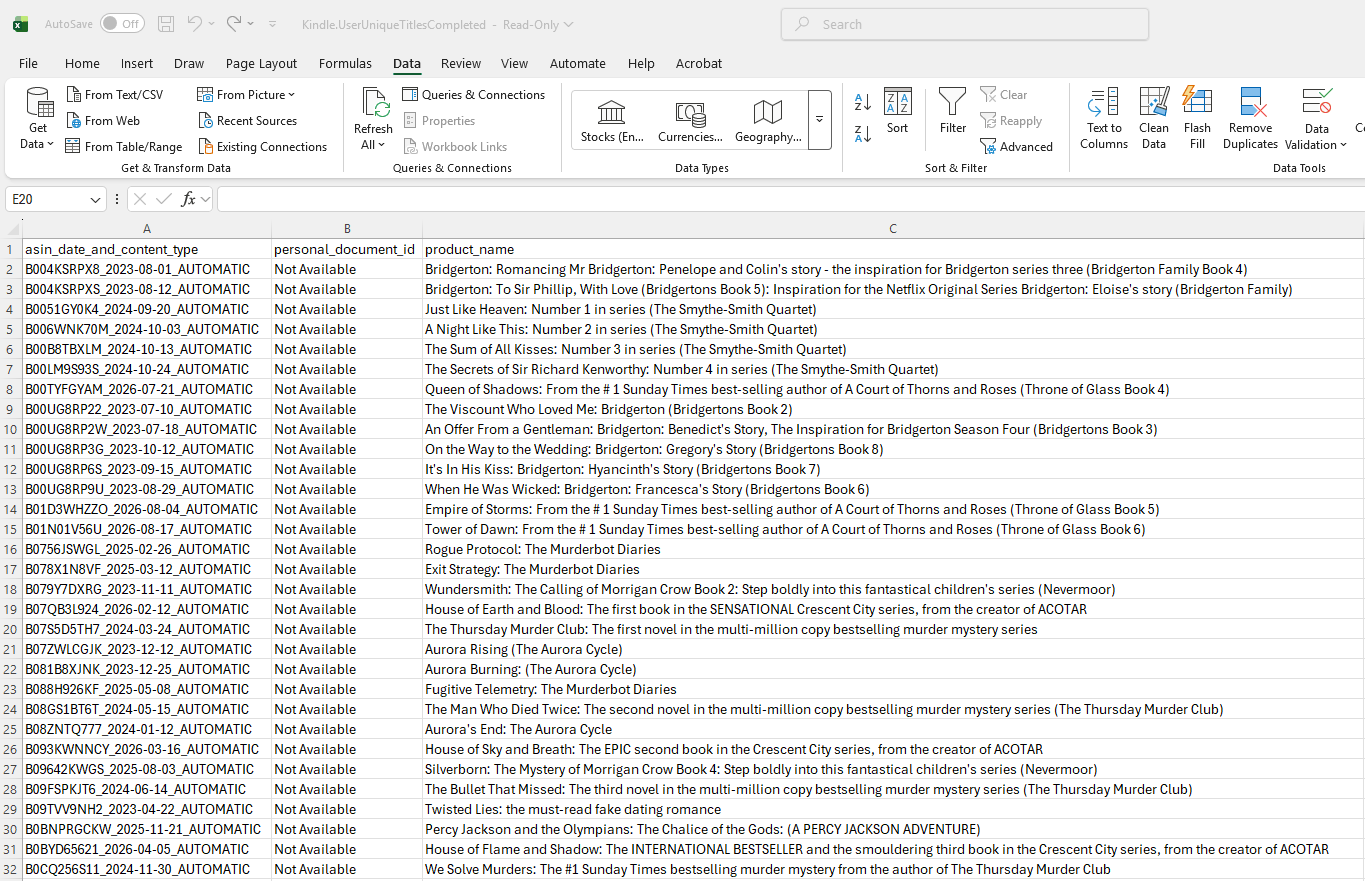
- The third and final Kindle data export file I would recommend taking a look at is
Kindle. You will need to use Excel’s Text to Columns function here too, as again it’s all one comma-delimited row..UserUniqueTitlesCompleted .csv - Tip: if you’re surprised by a low count in this export, it’s probably because you didn’t tap all the way through to 100% on each book you read. A lot of us stop tapping when we reach ‘the end’, but Kindle doesn’t count a book as completed until you hit 100% - that means you have to tap through acknowledgements, previews, etc. for a book to count as completed. You can always go through and do that, then ask for another export. The only problem is that it will show all of the books you “update” this was as completed on the same day – but you will still be able to see how many pages and how much time you spent reading on a given day etc., and which book those pages and that time were in.
- Second tip: WrapRead lets you mark books as completed right inside the app, so you don’t have to do it on your Kindle if you use WrapRead.
- Also worth checking out:
Kindle– that shows your reading genres;.UnifiedLibraryIndex .CustomerGenres .csv Kindle– that’s where you’ll find your Kindle ratings; and.Devices .GoodreadsBookRatings Kindle– that’s where Amazon keeps your reading streak numbers..ReadingStreakState

Let WrapRead analyse your Kindle data and serve you with a Kindle Wrapped and more
This is all quite a lot of work, and you don’t end up with a very attractive overview of your data. That’s exactly why I created WrapRead, which looks through the data for you.
WrapRead does two things:
- It creates a series of shareable graphics (suitable for sharing on Instagram as posts or stories, on TikTok, or wherever you want) with your key stats.
- It gives you a dashboard where you can explore all of your Kindle data in more detail, and even lets you compare your reading habits across different time periods.
Better yet, it’s all completely private. WrapRead only looks at the 9 CSV files from your Kindle data export that it needs to create your Kindle Wrapped and your reading insights dashboard. None of your data is seen by the WrapRead server either, and as a result we not only don’t keep your data – we actually can’t, because it never reaches the WrapRead servers, it all happens in your browser.
WrapRead can remember your last report in your own browser, so you can come back to it without your export file. There is one exception: an optional free account. If you create one and choose to save your report, the reading data WrapRead has read from your export (never the ZIP itself) is stored for you in the EU, and you can download it or delete it at any time. Nothing leaves your browser unless you choose to save it. If you’d like a reminder when it’s time to request a fresh export, your account can email you one: every reminder is off until you turn it on.
Want to try it out? Check out my guide on how to request your Kindle data. If you already have it, click here to create your WrapRead Kindle Wrapped and insights dashboard!